
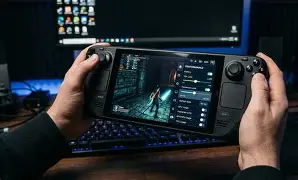
The Steam Deck performance guide below focuses on practical settings that can help you get higher and more consistent frame rates without unnecessarily sacrificing image quality. While the Steam Deck can deliver impressive performance from a handheld device, a locked 60 FPS is not realistic in every modern AAA game. Performance depends heavily on the game’s engine, graphics settings, resolution and CPU/GPU workload.
For lighter games and well-optimised titles, 60 FPS can be an achievable target. For demanding games, a stable 40 FPS or 30 FPS may provide a smoother overall experience than constantly fluctuating between 45 and 60 FPS. Community testing on ProtonDB shows how different games can require substantially different resolutions, FSR settings and graphics presets to maintain smooth performance.
Steam Deck Best Performance Settings at a Glance
Before changing individual graphics options, start with these general settings:
| Setting | Recommended Starting Point |
| FPS Limit | 60 FPS |
| Refresh Rate | 60Hz |
| Resolution | 1280×800 or lower when necessary |
| TDP Limit | Disabled initially |
| GPU Clock | Disabled initially |
| FSR | Quality or Balanced |
| Half Rate Shading | Off |
| V-Sync | Off unless required |
| Graphics Preset | Low/Medium |
| Motion Blur | Off |
| Shadows | Low/Medium |
| Reflections | Low |
| Volumetrics | Low |
These are starting points rather than universal rules. Some games benefit from different combinations, so benchmark each title after making changes.
1. Set the Correct FPS and Refresh Rate
The first step in a Steam Deck performance boost is choosing an appropriate frame-rate target.
If your game can genuinely maintain 60 FPS, use a 60 FPS limit with a 60Hz display setting. The LCD Steam Deck’s display operates at up to 60Hz, while the OLED model can reach higher refresh rates. For games that cannot consistently maintain 60 FPS, lowering the target can improve frame pacing and reduce unnecessary power consumption.
A stable 40 FPS can often feel considerably better than an unstable 60 FPS that frequently drops into the 30s.
Therefore, don’t treat 60 FPS as mandatory for every game. The best setting is the highest frame rate your hardware can maintain consistently.
2. Use FSR to Boost Steam Deck FPS
AMD FidelityFX Super Resolution, or FSR, is one of the most useful tools for improving performance on the Steam Deck.
FSR renders a game internally at a lower resolution and reconstructs the image to a higher output resolution. This can reduce GPU workload while maintaining reasonable image quality.
For games with built-in FSR, start with:
- FSR Quality for better image quality
- FSR Balanced for a stronger performance improvement
- FSR Performance when the GPU is struggling significantly
The Steam Deck’s own scaling tools can also be useful when a game is rendered below the native display resolution. Community testing has demonstrated that lowering internal resolution and combining it with FSR can help achieve higher frame rates in demanding games.
Avoid jumping straight to the most aggressive upscaling mode. Excessively low internal resolutions can make text, fine details and distant objects look noticeably soft.
3. Lower the Settings That Consume the Most GPU Power
Not every graphics option has the same performance impact.
For a practical Steam Deck performance guide, focus first on the settings that tend to place significant demands on the GPU.
Lower These Settings First
Shadows:
Set shadows to Low or Medium. High-quality shadows can consume considerable GPU resources without dramatically changing the overall experience on a small screen.
Volumetric Effects:
Reduce volumetric fog, clouds and lighting. These settings can be particularly demanding in open-world games.
Reflections:
Lower screen-space reflections and other reflection settings when you need additional FPS.
Ambient Occlusion:
Use Low or Medium rather than the highest available setting.
Crowd Density:
In CPU-heavy games, reducing NPC and crowd density can help more than lowering texture quality.
Effects:
Lower particle and visual-effects quality if explosions and busy scenes cause frame-rate drops.
4. Keep Texture Quality Higher When Possible
Texture quality is not always the first setting you should reduce.
If your game has enough available memory, Medium or High textures can often provide a better visual improvement than increasing shadows or reflections. Texture quality primarily affects the amount of memory required to store texture data, whereas several other settings can have a more direct impact on GPU rendering workload.
A useful strategy is therefore to keep textures at Medium or High while reducing expensive effects such as shadows, reflections and volumetrics.
This approach can preserve a sharper-looking game while freeing performance elsewhere.
5. Optimise Steam Deck Power Settings
The Steam Deck’s Quick Access performance menu provides controls that can affect performance and power consumption.
The TDP limit controls the maximum power available to the system. Reducing it can improve efficiency in games that do not require the full available power, but setting it too low can reduce performance.
For a 60 FPS target, start with TDP unrestricted. If your game already reaches the desired frame rate, you can experiment with a lower power limit and monitor whether performance remains stable.
Community testing also shows that TDP can be useful on a per-game basis because different titles have different power requirements.
What About Manual GPU Clock?
The manual GPU clock should generally remain disabled unless you are troubleshooting a specific performance problem.
For most players, changing multiple power controls simultaneously makes it harder to determine which setting is actually helping.
Test one adjustment at a time and monitor frame rate, frame times and power consumption.
6. Disable Unnecessary Visual Effects
Some effects make games look more cinematic but provide little competitive or practical value on the Steam Deck’s relatively small display.
Consider disabling:
- Motion blur
- Film grain
- Chromatic aberration
- Depth of field
- Lens distortion
These options generally do not provide a meaningful FPS boost individually, but removing them can make the image cleaner and easier to read.
For shooters and other fast-paced games, disabling motion blur can also make movement appear clearer.
7. Choose Low or Medium Presets First
If you’re struggling to reach your target FPS, don’t manually change 20 settings immediately.
Start with the game’s Low or Medium preset and then increase individual settings that matter most to you.
For example:
- Select Medium.
- Set the resolution to 1280×800.
- Enable FSR Quality.
- Test performance.
- Reduce shadows if FPS is too low.
- Reduce reflections and volumetrics next.
- Increase textures if performance allows.
- Test again.
This gives you a repeatable optimisation process instead of randomly changing settings.
8. Check Whether Your Game Is CPU or GPU Limited
A major part of how to boost FPS on Steam Deck is understanding what is actually limiting performance.
If the GPU is consistently operating near full utilisation while the CPU has spare capacity, reducing GPU-heavy graphics settings or using FSR is likely to help.
If the CPU is heavily loaded, lowering resolution may provide little benefit. In CPU-limited games, reducing crowd density, simulation quality or other CPU-heavy options can be more effective.
The Steam Deck performance overlay can help you identify these bottlenecks while playing. Community testing also recommends monitoring CPU/GPU utilisation and power consumption rather than changing settings blindly.
9. Don’t Ignore Frame Pacing
Average FPS is not the whole story.
A game reporting 60 FPS can still feel inconsistent if frame times fluctuate significantly. Conversely, a properly locked 40 FPS can feel smoother than an unstable 50–60 FPS experience.
This is why your Steam Deck best settings should focus on consistency rather than simply chasing the highest number shown by the performance overlay.
For demanding games, consider these targets:
- 60 FPS: Competitive and lightweight games
- 45–50 FPS: Balanced performance target
- 40 FPS: Excellent compromise for many demanding titles
- 30 FPS: Suitable for graphically intensive AAA games
ProtonDB reports frequently show players choosing 30 or 40 FPS caps in demanding games because stable performance can be preferable to inconsistent higher frame rates.
10. Keep SteamOS and Games Updated
Software updates can affect compatibility and performance.
Keep SteamOS updated and allow games to receive their latest patches. Compatibility layers such as Proton can also influence how Windows games perform on SteamOS.
Some games perform well without any modifications, while others benefit from a different Proton version or specific configuration. ProtonDB provides game-specific reports from Steam Deck users and can be useful when a particular title behaves unexpectedly.
Avoid installing multiple unofficial performance tweaks simply because they are popular online. If the game already performs well, unnecessary modifications can introduce instability.
Best Steam Deck Settings for Different Game Types
There is no single configuration that works perfectly for every title.
Competitive Games
For competitive shooters and fast multiplayer games:
- Target 60 FPS where achievable
- Use Low/Medium graphics
- Disable motion blur
- Use a clear upscaling mode
- Keep input latency as low as possible
- Prioritise stable frame pacing
Indie and 2D Games
Many indie games do not require aggressive optimisation.
Try:
- Native resolution
- Higher graphics quality
- 60 FPS
- No unnecessary TDP restriction
You can then reduce power limits if you want longer battery life.
AAA Games
For demanding modern games:
- Start with Low/Medium settings
- Use FSR Quality or Balanced
- Lower shadows
- Lower volumetrics
- Reduce reflections
- Target 30 or 40 FPS if 60 FPS is unrealistic
Some AAA games can reach 60 FPS with substantial compromises, but not every title can do so. Community reports demonstrate that stable 60 FPS may require reducing resolution considerably in demanding games.
Steam Deck 60 FPS Troubleshooting Checklist
If your game is still dropping frames, work through these steps:
- Check GPU and CPU utilisation.
- Lower the internal resolution.
- Enable FSR.
- Reduce shadows.
- Reduce volumetric effects.
- Lower reflections.
- Reduce crowd density in CPU-heavy games.
- Disable motion blur and other unnecessary effects.
- Test a 40 FPS cap.
- Check ProtonDB for game-specific recommendations.
If performance improves after one change, keep that setting and move to the next one only if necessary.
Should You Always Aim for 60 FPS?
No. This is one of the most important points in any Steam Deck performance boost guide.
The Steam Deck is designed around portable gaming efficiency, not maximum desktop-class performance. A 60 FPS target makes excellent sense for lightweight games and competitive titles, but demanding AAA games may require significant graphical compromises.
A stable 40 FPS can provide an excellent balance between responsiveness, visual quality and battery consumption. Similarly, 30 FPS can be the right choice when playing particularly demanding games.
Conclusion
The easiest way to improve Steam Deck performance is to optimise systematically rather than applying extreme tweaks immediately.
Start with a 60 FPS target, use the appropriate refresh rate, enable FSR when beneficial and lower GPU-intensive settings such as shadows, reflections and volumetrics. Keep textures higher when performance allows, and use the performance overlay to determine whether your system is CPU- or GPU-limited.
Most importantly, remember that 60 FPS is a target, not a guarantee. The best configuration depends on the game. If a demanding title cannot maintain 60 FPS, switching to a stable 40 FPS target can produce a much better experience than constantly chasing unstable frame rates.
With the right combination of resolution, FSR, graphics quality and power settings, you can get significantly better and more consistent performance from your Steam Deck without sacrificing more image quality than necessary.
Also Read: Robinhood Chain to Tokenize Private Companies, Art and Real Estate
